
How to protect aging parents from online scams without overwhelming them
A practical guide for adult children who want to reduce scam risk for aging parents without treating them like children or burying them in security advice.
Read articlePersonal Security
Six steps to lock down a parent's Windows computer against remote-access scams, and one family rule. Plain steps, honest limits, and when to get help.
The short answer is six settings and one rule. Give your parent a standard Windows account. Keep Windows Update and Microsoft Defender on. Clean up browser notifications. Remove remote-access programs you do not know. Turn on multi-factor authentication for their email. Then add one family rule: any call about a computer problem means calling you before doing anything else.
The FBI's 2025 Internet Crime Report recorded more than 21,000 tech and customer support scam complaints from people 60 and over. Their losses came to more than $1 billion. The steps below work on a Windows computer you can sit at with your parent, or reach with their cooperation.
1. Create a standard account for your parent and keep the administrator account for yourself.
Windows lets multiple people share one computer under separate user accounts. A standard account can open and use programs already installed, but it cannot install software that needs administrator rights. That matters. Say a scammer talks your parent into installing a remote-access program that needs those rights. Windows will ask for the administrator password, and your parent will not have it.
To set this up: go to Settings, then Accounts, then "Family & other users" (or "Other users" on some Windows versions). Add a new account for your parent and set the account type to "Standard User." Keep the administrator account for yourself. Do not leave its password written near the computer.
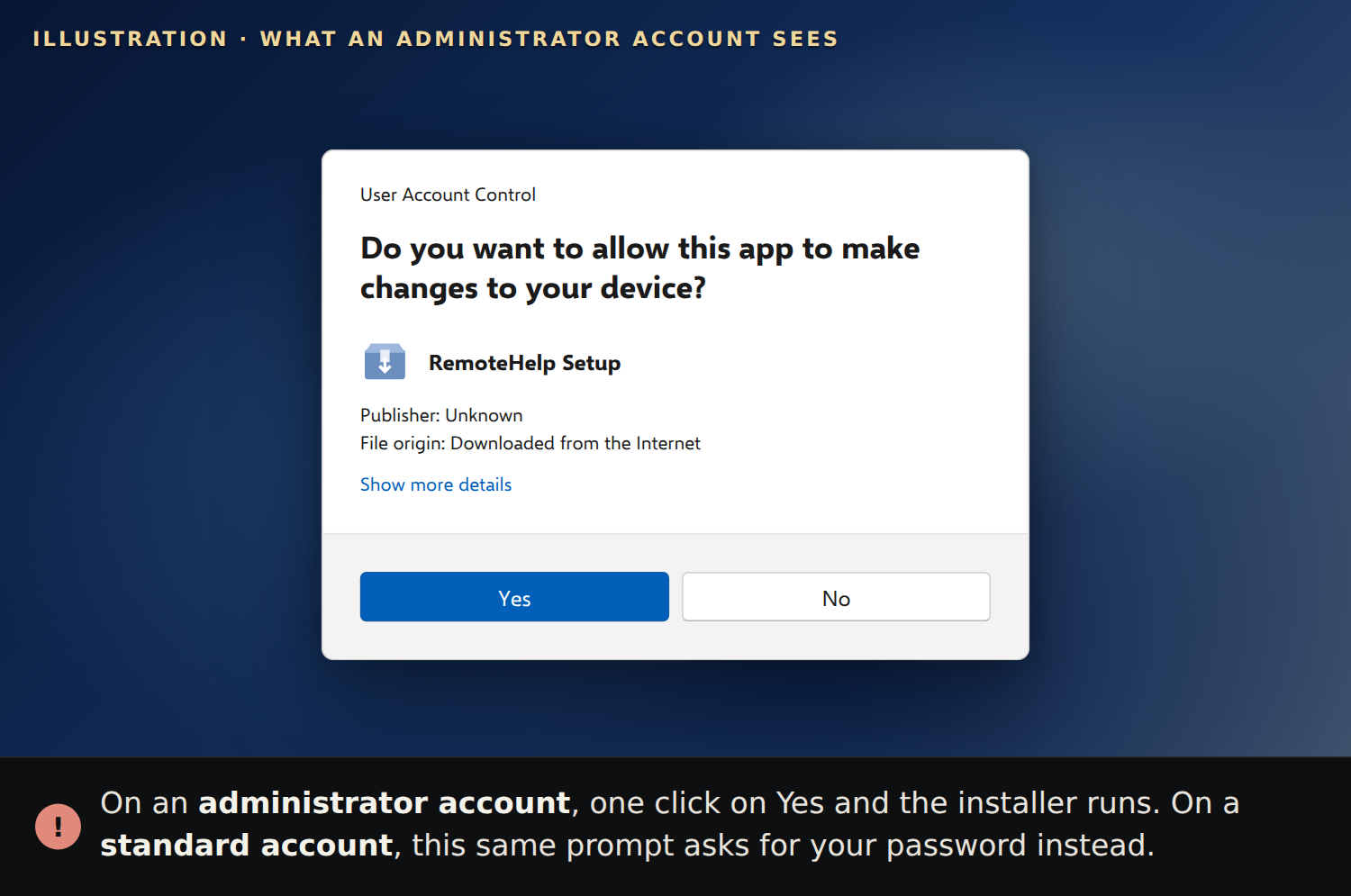
An illustration of the prompt on an administrator account, which is how the first account on a Windows PC is set up. On your parent's new standard account, the same prompt asks for the administrator password.
2. Turn on Windows Update.
Windows Update delivers security fixes for known weaknesses. Without them, those weaknesses stay open. They can be used to take over a computer even when the user does nothing wrong. Go to Settings, then Windows Update, and confirm that automatic updates are on. The check takes a minute and requires no ongoing attention once it is set.
3. Confirm Microsoft Defender is running.
Windows includes Microsoft Defender, a built-in antivirus program. It is on by default unless another antivirus program has taken over. Check it at Settings > Privacy & Security > Windows Security > Virus & Threat Protection. Active protection usually shows a green checkmark. If Defender is off and nothing else is running, turn it on.
4. Turn off browser notifications they did not ask for.
Websites can ask to send notifications through the browser: messages that pop up on the screen. Scammers use these pop-ups to make a computer look infected. In most browsers, go to Settings, then Notifications (sometimes listed under "Site settings"). Remove any site your parent does not recognize and did not add on purpose. Turning off the option to allow new notification requests entirely is usually the cleaner choice.
5. Remove remote-access programs neither of you recognizes.
Remote-access programs — such as TeamViewer or AnyDesk — let someone control a computer from another location. They are legitimate tools, but scammers use them to take over screens and banking sessions. Go to Settings, then Apps, and scroll through what is installed. If you see a remote-access program that neither of you put there and neither of you needs, uninstall it. Note what it was before removing it.
6. Turn on multi-factor authentication for their email.
Multi-factor authentication (MFA) adds a second step when you sign in, often a code sent to a phone. Say someone steals the email password through a data breach or a fake link. MFA still keeps them out of the inbox. Every major email service has an MFA setting in its account security area. Turn it on and confirm that the recovery phone number or backup email address is current.
For more on why email is the account to secure first, see How to protect aging parents from online scams.
7. Agree on the "call me first" rule.
No Windows setting reaches a phone call. The family rule does. Agree on this together. If anyone says there is a problem with the computer, your parent stops. That goes for a phone call, a pop-up with a number to call, or anything else. Your parent hangs up or closes it. Then they call you, on a number they already have, before doing anything else. A real company will not mind if you hang up and call back on a number you already have.
Write the rule on a card. Put it where your parent will see it: by the phone, on the fridge, or near the computer. The card should have one instruction, your name, and the number to call. The printable fridge card is made for exactly that.
A standard account makes installing software harder, but it does not close every path.
CISA has documented a campaign in which emails led people to download legitimate remote-access software. Once connected, the criminals had people log into their bank. They changed what the bank page showed so it looked like a refund. Then they asked for the "extra" back.
Two limits are worth knowing plainly. First: CISA's advisory notes these tools can run as portable programs — without installing and without administrator rights. A standard account does not stop a portable program from running if your parent opens it directly. Second: CISA notes that the use of remote monitoring software "generally does not trigger antivirus or antimalware defenses." Defender still helps. But it may not stop a remote-access tool that someone chose to run.
The deeper limit is the phone itself. None of these settings block a convincing caller. A patient scammer can talk someone into paying. That can mean gift cards, a wire transfer, or logging into the bank while the scammer watches. The "call me first" rule is the only control that reaches a phone conversation.
The steps above are a practical starting point. For some households, they are not enough:
Managed monitoring means someone is watching the computer on an ongoing basis, not just after you hear about a problem.
Ridge Watch is managed monitoring for individuals' and families' computers. Security analysts in a 24/7 security operations center review every alert. They act on each one: they fix it, note it, or take the computer off the network to contain it. Taking a computer offline is one of those three outcomes, not what happens every time. A contained computer stays offline until we review it, within one business day.
Blocking remote-control tools is coming soon, Windows Pro only. A Windows Home computer would not get it.
Ridge Watch cannot stop a phone call. It cannot stop someone being talked into paying, whether by gift card, wire transfer, crypto or a bank login for a "refund." A real remote-access tool that someone lets in on purpose may not raise an alert. CISA notes these tools generally do not trigger antivirus. Ridge Watch does not cover phones or tablets.
Works on Windows and Mac computers. Month-to-month, cancel any time. See plans and prices.
Last updated
September 28, 2026. We refresh this content as the threat landscape and tools evolve.
FAQ
Creating a standard user account for your parent and keeping the administrator account for yourself. A standard account cannot install software that needs administrator rights without your password. Pair it with a family rule to call you before acting on any computer-problem claim.
Not reliably. CISA notes that legitimate remote monitoring software generally does not trigger antivirus defenses, and some of these tools run as portable programs without needing to install.
Antivirus is still worth running, but the standard account setup and the family call-back rule address threats antivirus cannot see.
Hang up and call a family member on a number they already have before doing anything. A real company will not mind if you hang up and call back on a number you already have. That rule applies whether the contact comes by phone, pop-up, or any other channel.
Related reading
A practical guide for adult children who want to reduce scam risk for aging parents without treating them like children or burying them in security advice.
Read articleA practical family fraud fire drill for urgent scam calls, fake bank alerts, AI voice-cloning attempts, and money requests that need a calm second check.
Read articleA calm, numbered checklist for families: cut the internet, call the bank, change passwords from a clean device, report it. Steps for the first hour.
Read article